
Two editions
DeltaTxt ships as a direct download and on the Mac App Store. Editing, search, comparison and merging are identical. Three things exist only in the direct download: Run and Debug with the Python console and script runners, the deltatxt shell command with its git integration, and the --diff, --merge and --run command-line verbs.
That is not a licensing choice. A sandboxed application can only reach a file you handed it through an open dialog, a drop, or Finder. A path typed at a shell has never been handed over, so those features cannot work in the App Store edition whatever permission is requested. If your copy has a Run menu, it is the direct download.
The window
Nothing in the window is compulsory. The toolbar, the line-number gutter, the workspace explorer, the document map and each sidebar panel are individually switchable from the View menu, and every one of those switches persists across launches — DeltaTxt replaces the system Hide Toolbar command, which forgets on quit, with one that remembers.
The file name sits at the trailing end of the toolbar so the buttons can start at the leading edge. It still behaves like a document title: click it for the enclosing-folder chain, or drag it to hand the file to another application. Dragging offers a copy or a link and never a move, because the file is open in front of you.
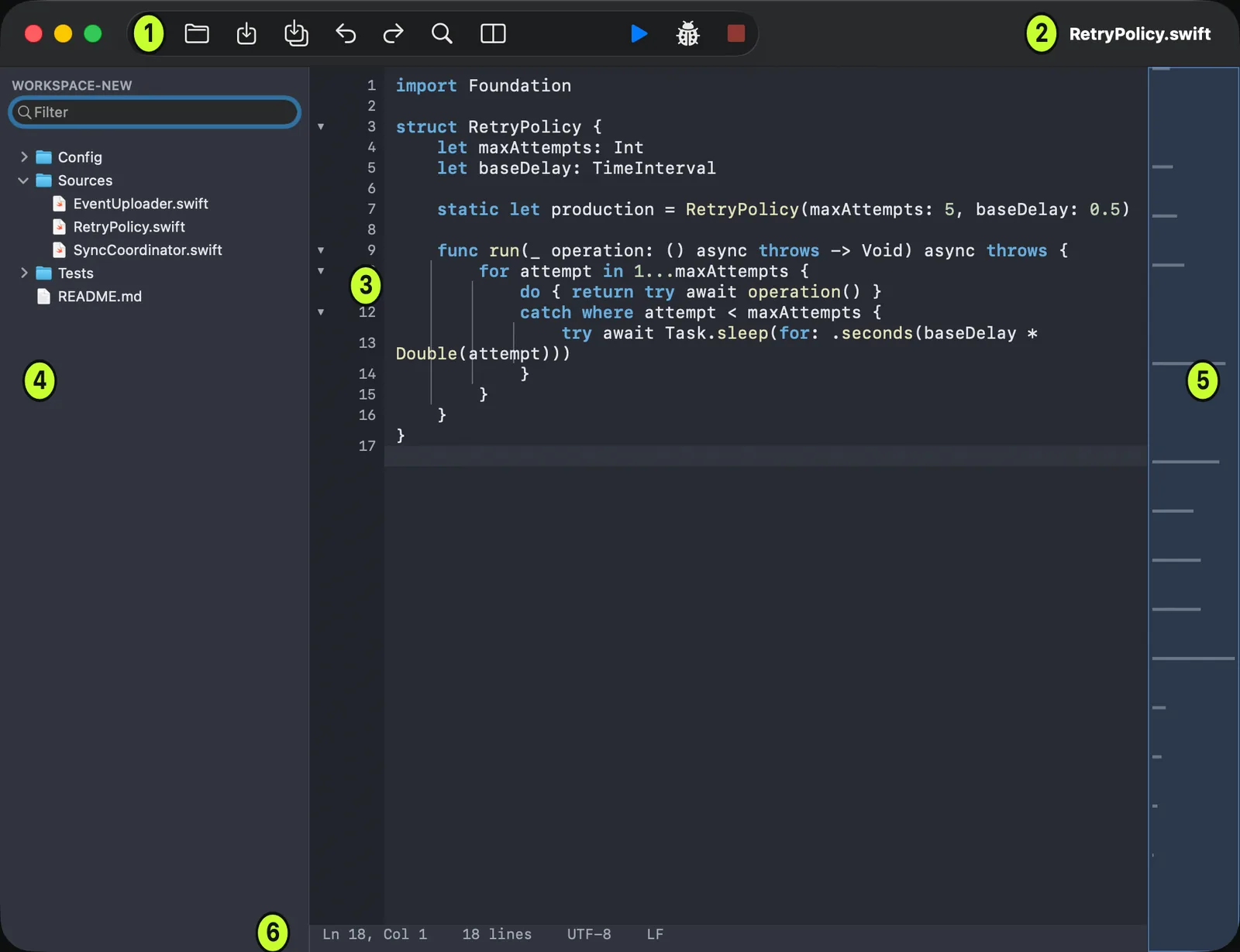
Documents open in tabs by default. Window ▸ Pinned Documents keeps up to twenty files you return to, independent of which windows are open, and puts Command-1 to Command-9 on the first nine. A pinned file that has moved stays listed and is marked as missing rather than disappearing.
Opening files, encodings, and large files
A file’s encoding, byte-order mark and line endings survive a load-and-save round trip unchanged unless you convert them deliberately. The status bar reports all three. Detection reads the byte-order mark, then looks for UTF-16 without one, then validates the file as UTF-8; a file that is not valid UTF-8 is read as Windows-1252 rather than ISO-8859-1, because real-world Windows text uses the range ISO-8859-1 leaves undefined for curly quotes, dashes and the euro sign.
Format ▸ Encoding converts on the next save, Format ▸ Reopen with Encoding re-reads the same bytes differently when detection guessed wrong, and Format ▸ Line Endings converts between LF, CRLF and CR. Saving in an encoding that cannot represent a character in the document names that character and offers UTF-8 instead of dropping it.
Three size thresholds apply and are easy to confuse. Over 16 MB a file loads behind a cancellable progress sheet so the window appears immediately. Over your warning threshold, 64 MB by default, DeltaTxt asks first and offers to search the file instead of loading it. Over 64 MB crash recovery stops snapshotting the document, and the status bar says so. For files past comfortable editing, Search ▸ Find in Large File… and Compare ▸ Streaming Compare Two Files… both read from disk and have no size limit.
Saving is atomic: content is written to a sibling file and swapped into place only after the write fully succeeds. There is no autosave and no Versions browser, deliberately — macOS ties Versions to autosaving in place, and a code editor must not write to a file a build, a script or git is watching. Unsaved work is protected by crash recovery instead.
Editing
Edit ▸ Line holds the twelve commands that treat lines as units: duplicate, move up and down, join, split, four sorts (ascending, descending, case-sensitive and numerically), reverse, remove empty lines and remove duplicates. The three trims are next door in Edit ▸ Whitespace. Sorting a file that ends in a newline leaves that newline at the end.
Edit ▸ Convert Case offers upper, lower, proper and invert; proper case knows about apostrophes, so don't stop becomes Don't Stop. Edit ▸ Whitespace converts between tabs and spaces column-aware rather than by search and replace, and converting spaces to tabs touches only leading whitespace.
Three things decide how Tab behaves, in order: an .editorconfig that applies to the file, the indentation the file already uses if detection is on, then your preferences. Tab and Shift-Tab across a multi-line selection indent and outdent the block rather than replacing it.
Search ▸ Select Next Occurrence builds a real multi-range selection, and it is genuinely useful for delete, mark and copy. It is not multi-cursor editing: the Mac text system honours every range for painting and deletion but not for insertion, so typing replaces the first range and drops the rest. For repeated edits down a column use Edit ▸ Column Editor…, which is built for it.
Edit ▸ Macro — Start Recording, Play Macro, Play Macro Multiple Times — records editor commands rather than keystrokes, so a macro replays correctly against text that differs from where it was recorded. Snippets are edited as JSON from File ▸ Customize ▸ Snippets…, which opens the file as an ordinary document; $0 marks where the caret lands.
Finding and replacing
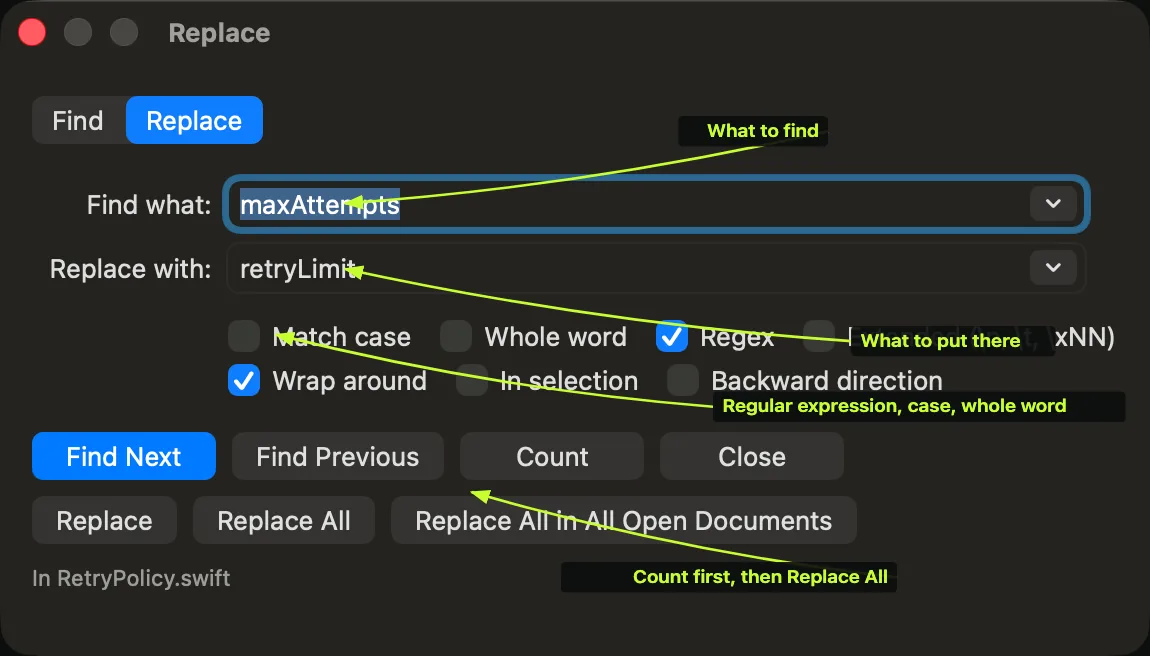
Count and Find All in Document tell you what a replace would touch before you run it, and Find All in All Documents does the same across every open document including unsaved ones. In Selection verifies each match against the selection before replacing it, so a replace cannot leak past the end of a selection as the text shifts.
A replace across a file writes to a sibling and swaps it atomically, and with backups on it keeps the previous contents as .deltatxt.bak. A replace that matches nothing changes nothing at all, including the backup.
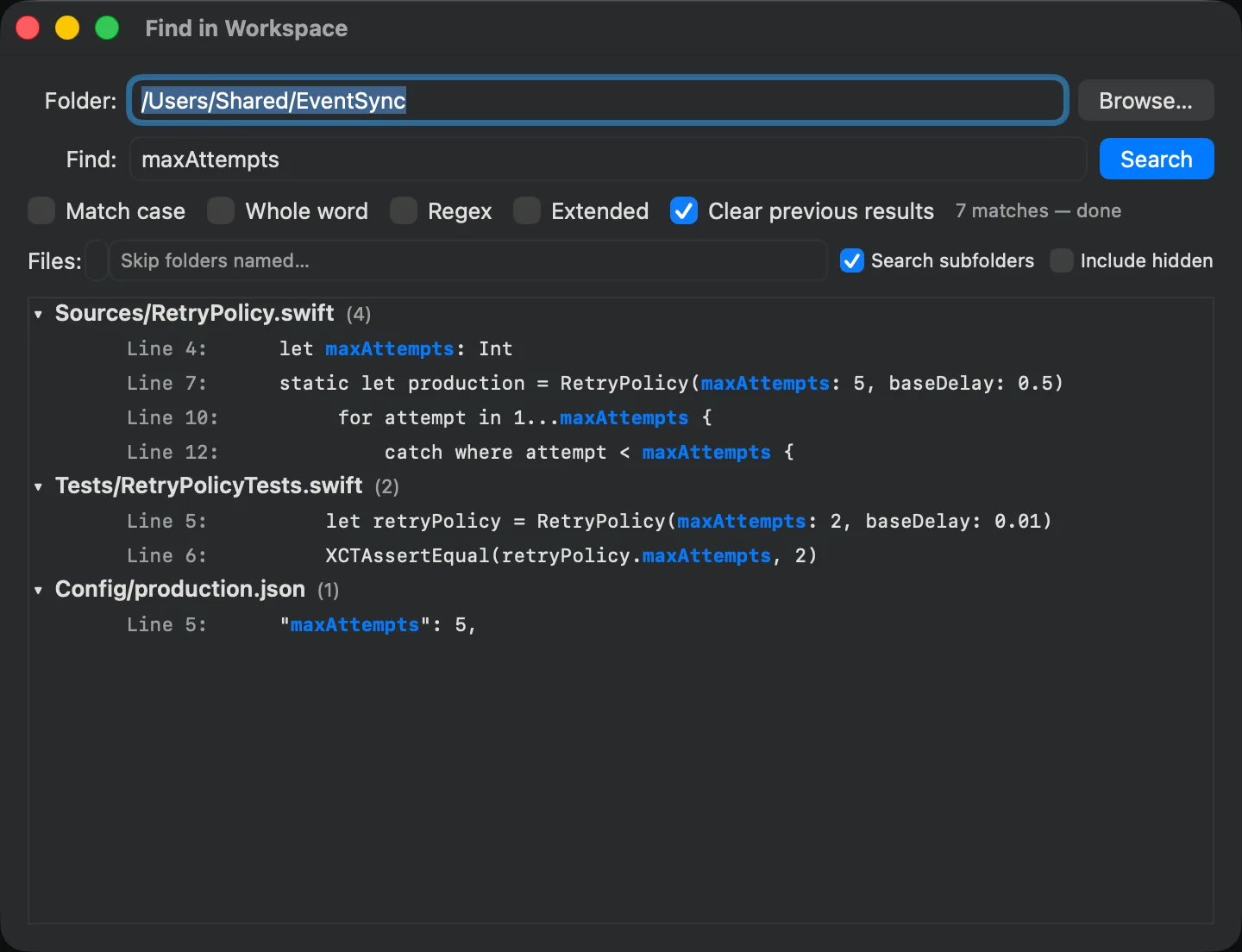
Search ▸ Find in Workspace… searches every file under the open folder, taking file patterns such as *.swift; *.md and controls for subfolders, hidden files and ignored directories. Replace in Workspace… shows every proposed change for review before writing anything. A results list is a snapshot, so it is cleared after a replace rather than left pointing at line numbers that have moved.
Comparing and merging
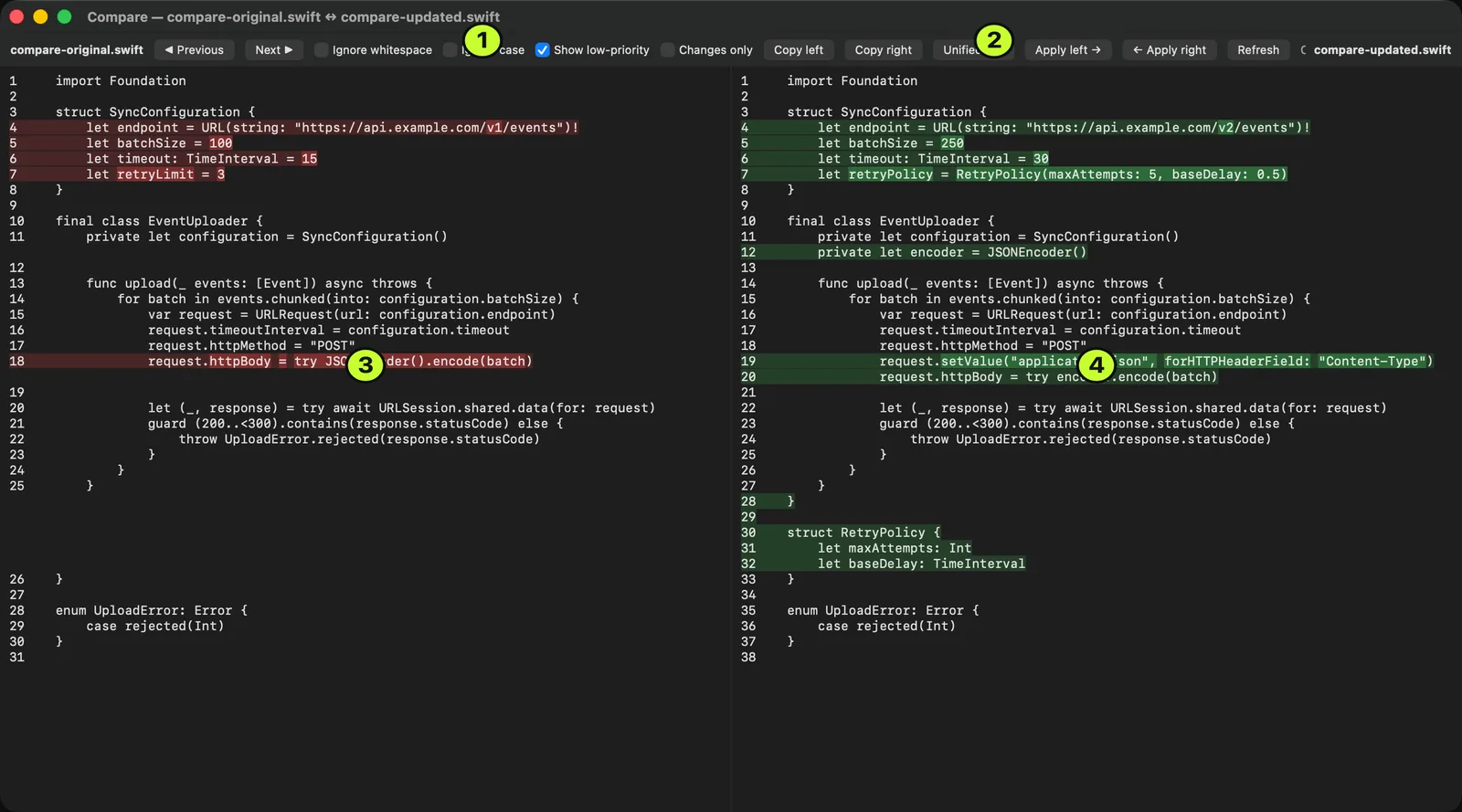
Compare ▸ Compare Two Files…, Compare This Document With File… and Compare This Document With Clipboard cover most of what people want. In Finder, use Select for Compare and then Compare to Selected from the Services menu. The left pane is editable, individual changes can be applied across, and the whole comparison exports as a unified diff. A file with Windows line endings compared against its Unix twin reports as identical rather than as every line changed.
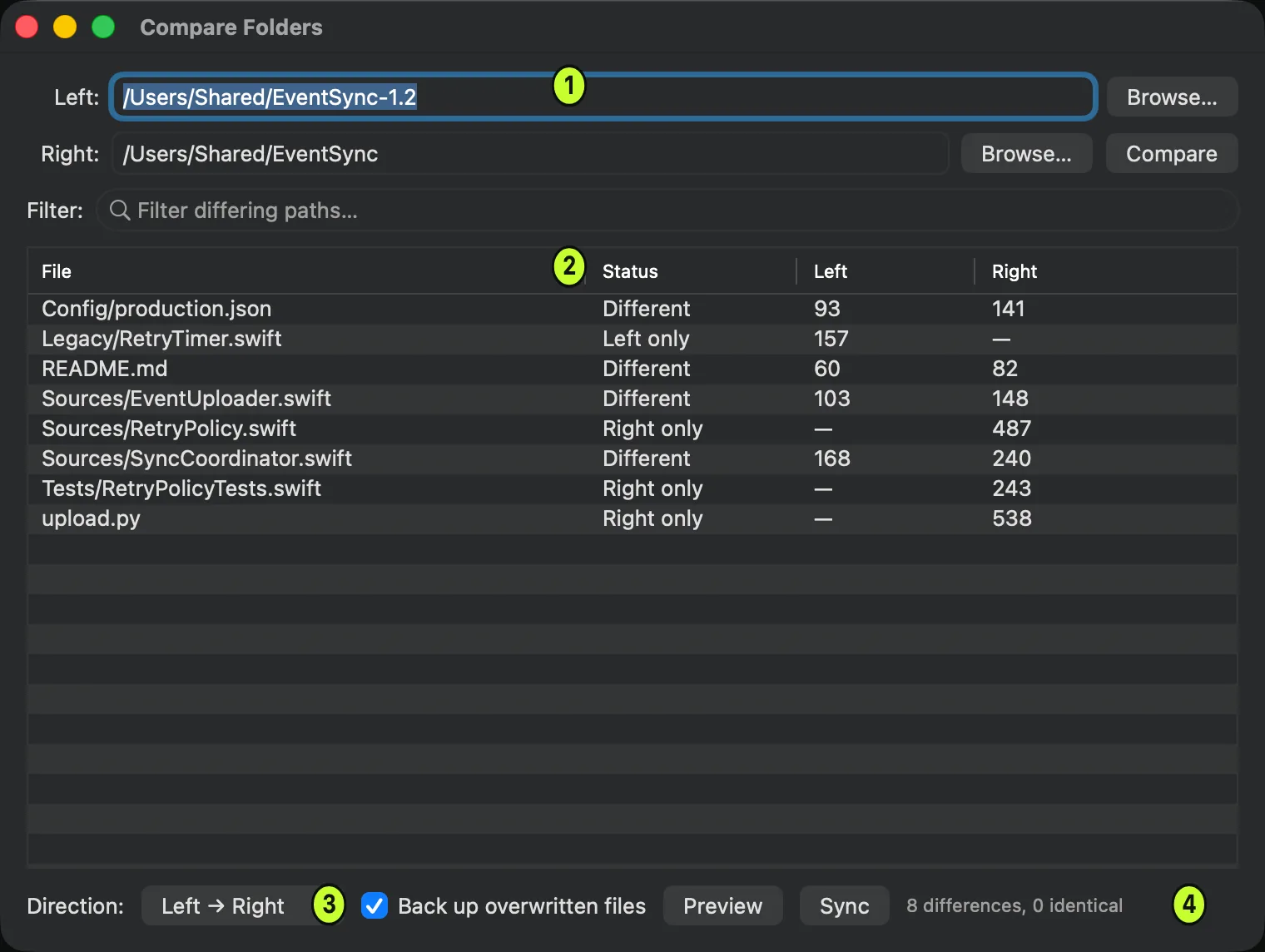
Compare ▸ Compare Two Folders… reports each file as identical, different, left-only, right-only, or unreadable. That last state matters: a directory DeltaTxt cannot read is reported rather than skipped, because skipping it would make every file beneath it look as though it existed on one side only. Folder sync shows the full list of what it will do and copies nothing until you confirm.
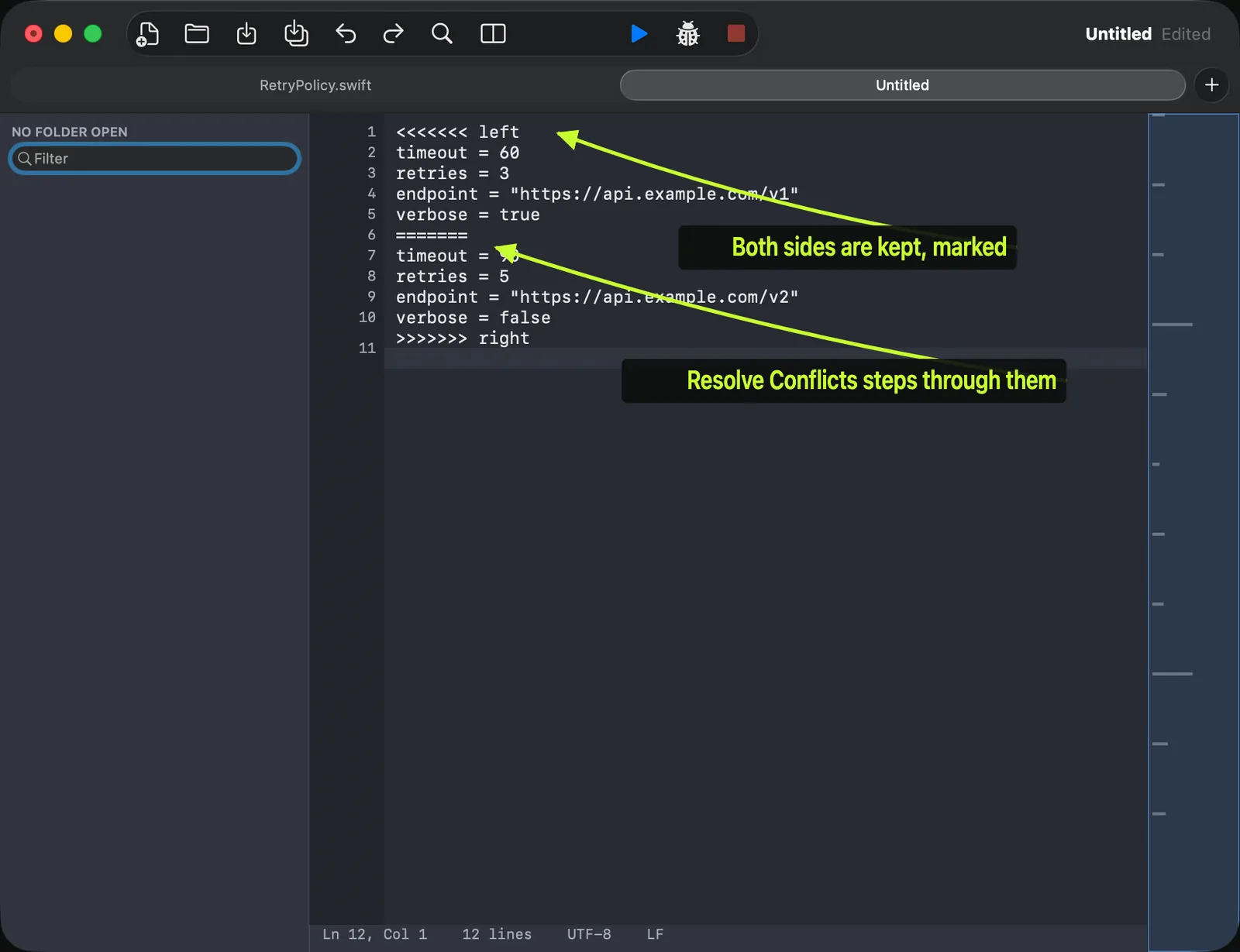
Compare ▸ Three-Way Merge… produces a merged draft as an untitled document, so the inputs are never overwritten and you choose where the result goes. Conflicts stay in the text as markers, and Compare ▸ Resolve Conflicts steps through them.
Running and debugging Python
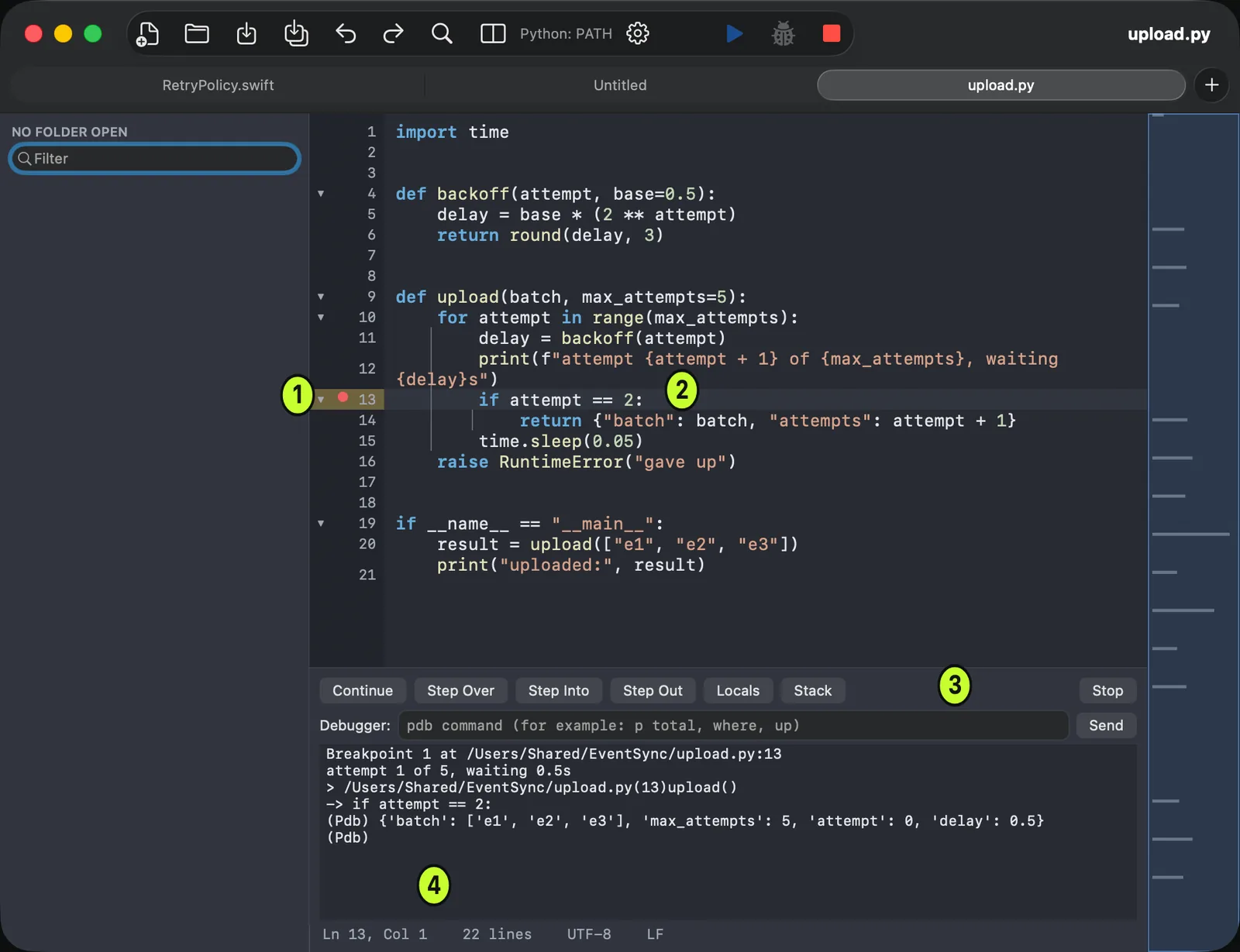
Direct download only. Run ▸ Run Script streams output into the panel below the editor, and the last of a process’s output is delivered before its exit is reported, so the final line of a script that fails immediately is never lost. When a run finishes while DeltaTxt is not the frontmost application, a notification reports the exit code.
Click the gutter to set a breakpoint and use Run ▸ Debug Script. Continue is F8, Step Over F10, Step Into F11, Step Out Shift-F11, and the panel shows the console, Locals and the call Stack. The debugger is Python-first and speaks the standard pdb protocol; conditional breakpoints and watch expressions are not provided.
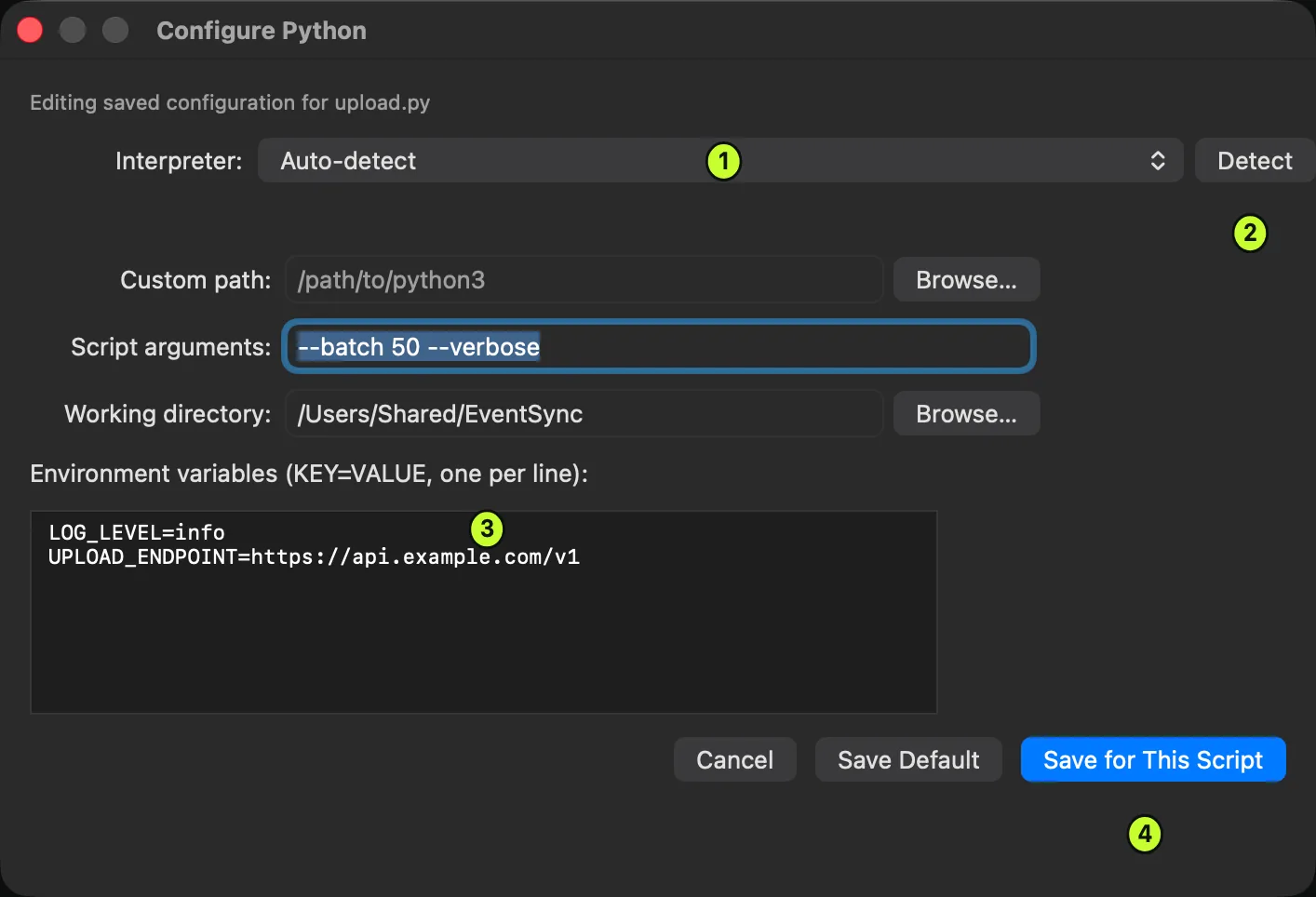
Run ▸ Python Run Configuration…, or the gear beside Run, chooses the interpreter. Detect scans the project, virtual environments, Conda and PATH, and honours VIRTUAL_ENV and CONDA_PREFIX. The same window sets arguments, a working directory and environment variables as one KEY=VALUE per line, and can save that setup as the default or only for the script in front of you. A per-script configuration wins over the default.
Run ▸ Configure Script Runners… maps a file extension to a program and arguments, so Run works for anything you can invoke from a command line. {path} is replaced with the script’s path and is the default when arguments are left blank. Compiled languages that need a build step are not covered, though a runner can invoke your own build script.
View ▸ Preview Markdown renders a Markdown document beside itself and follows your edits live, with clickable links. Tables are the one thing it cannot draw — their rows arrive as plain paragraphs, because the renderer is the system’s CommonMark support rather than a GitHub-flavoured one.
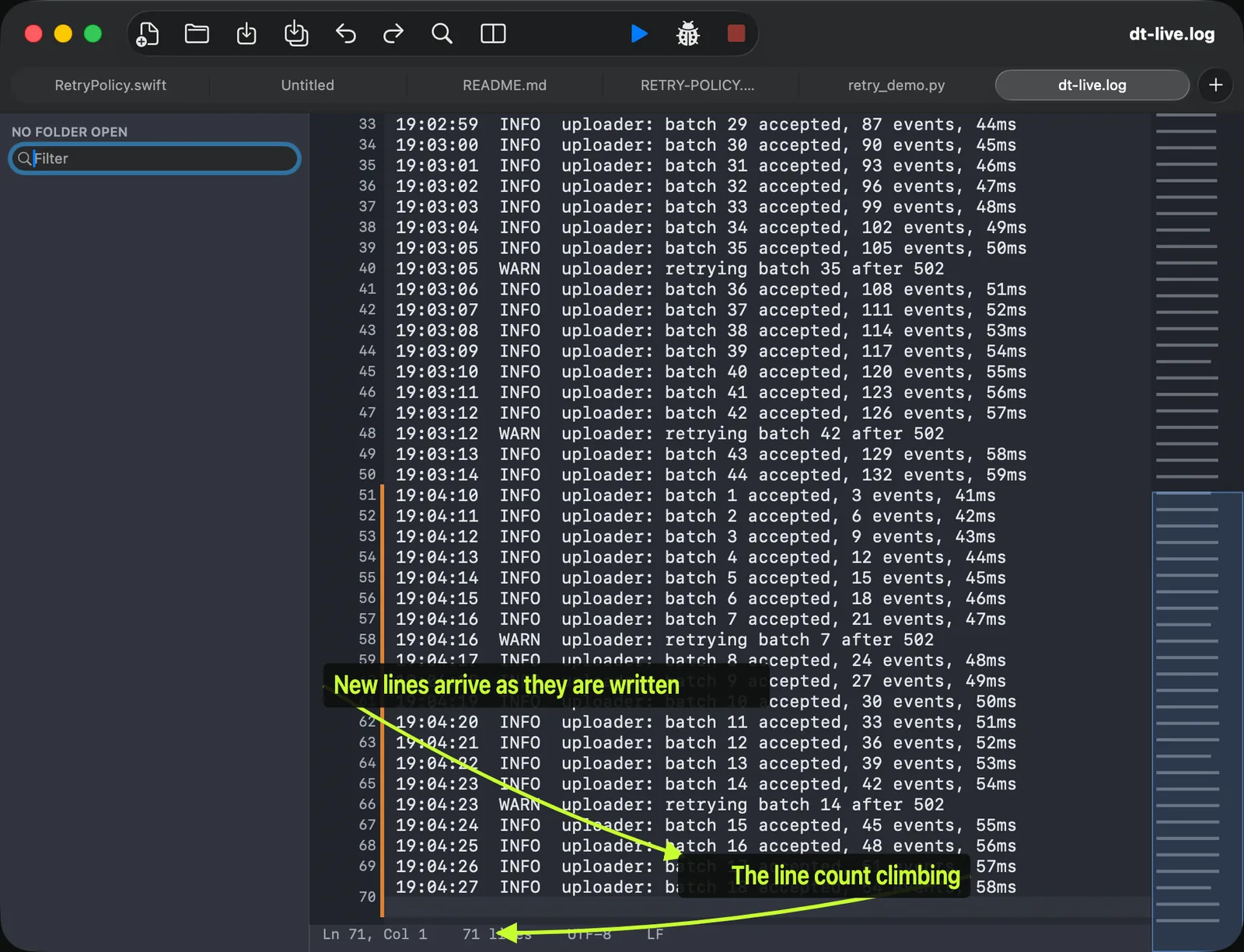
View ▸ Follow File tails a growing log in place, and the document is read-only while it does. A status message confirms it when you start and then fades; the lasting indicator is the tick beside the menu item. A multi-byte character split across two writes is held until it is complete, and a rotated log is noticed: DeltaTxt keeps what it has, inserts a marker, and continues with the new file rather than stopping or duplicating everything.
Configuring DeltaTxt
DeltaTxt ▸ Preferences… has five sections. Every control takes effect immediately in every open document — there is no OK, Apply or Cancel, and no Reset, so the defaults below are the reference. The search field looks across all five sections at once. There is no colour picker: the Light and Dark themes are fixed, and syntax colours arrive with a language profile.
General
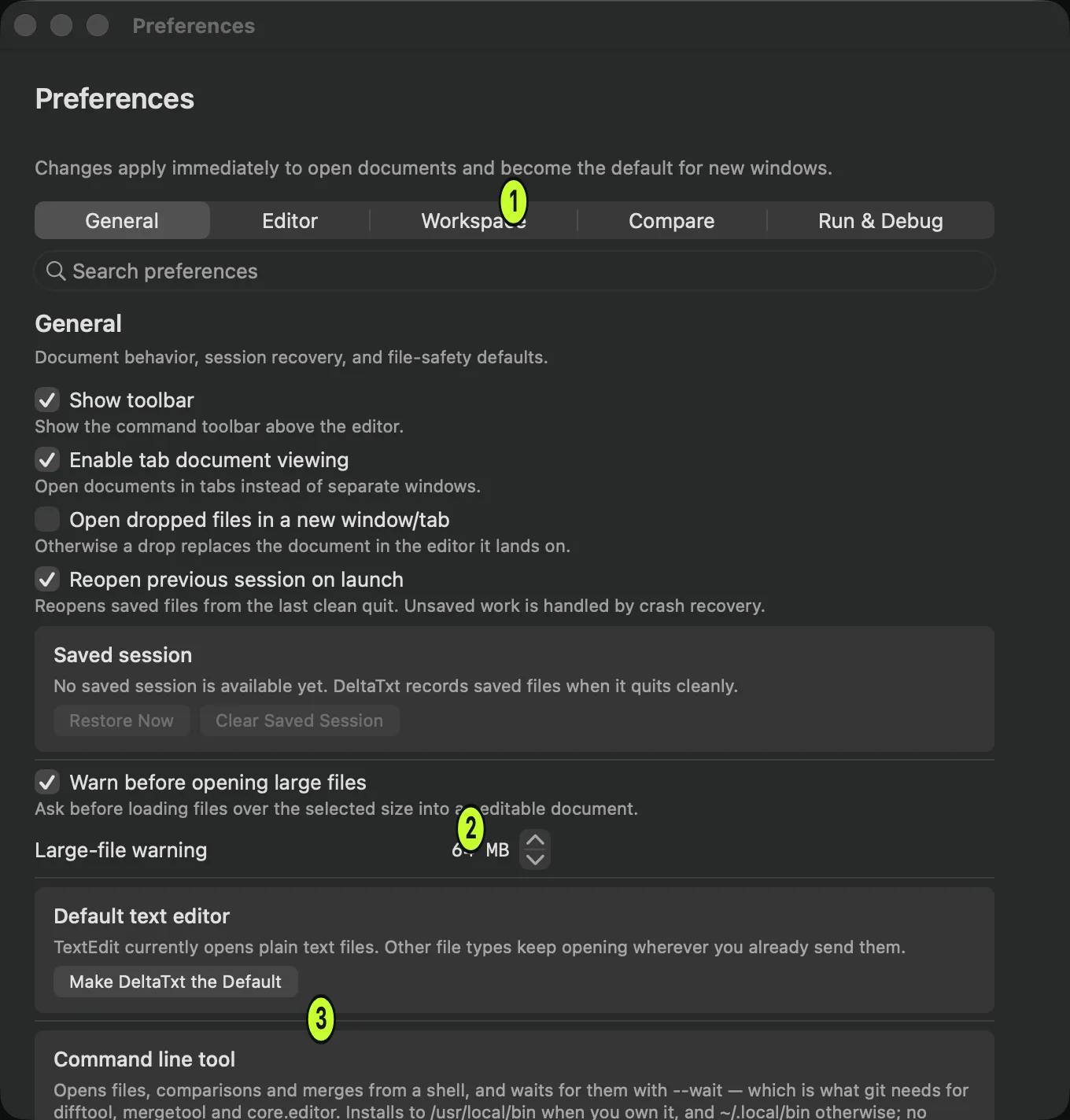
Two cards in this section are not stored preferences. Default text editor is a macOS setting, and its button claims plain text and logs only — asking a text editor to open your text files is not asking it to take .json from your IDE. Command line tool writes a file; see below.
Editor
Defaults for plain text. A rich-text document keeps its own formatting and ignores them.
Workspace
Compare
Defaults for newly opened comparisons. Each window keeps its own controls.
Run & Debug
Two settings, both on: Clear output before run and Scroll output to the newest line. Turn the second off to read earlier output while a process is still writing. The interpreter and its environment are configured per script from Configure Python instead.
Keyboard shortcuts
File ▸ Customize ▸ Keyboard Shortcuts… opens keybindings.json as a document — a flat map of command name to chord. The file is rewritten on every launch with every command the app has and the shortcut it ended up with, so it doubles as a complete current list. An empty string clears a shortcut, and a chord that cannot be parsed is reported by name at the next launch. If two commands end up on the same chord DeltaTxt says so, because one of them then has no working shortcut.
EditorConfig
DeltaTxt reads .editorconfig automatically, walking up from the file being opened; the nearest file wins and root = true stops the walk. Three keys are parsed but not applied, and are listed as unsupported rather than left for you to discover.
unset works for every key, and an unrecognised value is ignored rather than treated as a reset, so a typo in a nearer file does not erase a deliberate setting further up. Numbers must be between 1 and 1000, the upward walk stops after 64 directories, a file over 1 MiB is ignored, and glob matching is case-insensitive with **, *, ?, character classes, {a,b} and numeric ranges all supported. A malformed file counts as absent and never stops a file opening.
Where DeltaTxt keeps things
Everything is under ~/Library/Application Support/DeltaTxt/, and inside the application container in the App Store edition. All of it is JSON.
settings.json— Every preference, plus the recent-workspace and pinned-document lists. Unknown keys are tolerated and out-of-range numbers are clamped on load, so hand-editing is safe.keybindings.json— Shortcuts. Rewritten every launch with every command, so it doubles as a current list.snippets.json— Snippets. Seeded with seven on first use.runners.json— Script runner profiles, one per file extension.python-run.json— The default Python run configuration.script-run-configurations.json— Per-script Python overrides, keyed by path.languages/profiles.json— Imported syntax profiles.session.json— The Reopen Previous Session list.recovery.json— Crash-recovery snapshots. Cleared on a clean quit.crash-*.log— Crash reports, newest ten kept. Paths inside your home folder are redacted before they are written.
Driving DeltaTxt from outside
Finder offers DeltaTxt under Open With, plus Select for Compare, Compare to Selected and Run with DeltaTxt in the Services menu. These work in the App Store edition too, because a file reference handed over by Finder carries its own permission.
Two Shortcuts actions are published, Open File in DeltaTxt and Compare Files in DeltaTxt, and both appear in Spotlight. Each accepts a file an earlier action produced in memory and never wrote to disk: such content opens as an untitled document. There is deliberately no Run action, because a Shortcut can be triggered by things you are not watching.
For anything that has a URL and no shell — a Shortcut, an AppleScript, a Markdown link, a build tool’s “open the offending file”:
deltatxt://open?path=/abs/path.txt&line=42
deltatxt://compare?left=/abs/a.txt&right=/abs/b.txt
deltatxt://merge?base=/abs/b&left=/abs/l&right=/abs/r
path may be repeated to open several files, and a link works whether or not DeltaTxt is already running. There is deliberately no run verb and a link cannot name a file to overwrite: a URL scheme is reachable from any web page with no prompt, so both would be drive-by primitives. The command line keeps them, because invoking a shell already means the caller can do anything.
The deltatxt command, and git
Direct download only. Install it from Preferences ▸ General ▸ Command line tool. It goes to /usr/local/bin when you own that directory and ~/.local/bin otherwise, never asks for a password, and then tells you whether your login shell will actually find it.
deltatxt [-w] [-n] [-l LINE] FILE...
deltatxt [-w] --diff LEFT RIGHT
deltatxt [-w] --merge BASE LEFT RIGHT --output MERGED
-w does not return until the file, comparison or merge is closed, which is the flag that makes git work. -n creates a file that is not there, -l puts the caret on a line, and --help prints the git configuration. --diff, --merge and -n come before their files; everything else can go anywhere.
git config --global diff.tool deltatxt
git config --global difftool.deltatxt.cmd 'deltatxt --wait --diff "$LOCAL" "$REMOTE"'
git config --global merge.tool deltatxt
git config --global mergetool.deltatxt.cmd 'deltatxt --wait --merge "$BASE" "$LOCAL" "$REMOTE" --output "$MERGED"'
git config --global core.editor 'deltatxt --wait'
With those set, git difftool opens a comparison and waits for you to close it, git mergetool hands you a conflict and picks up the file you saved, and git commit opens the message in DeltaTxt. It is a script rather than a symlink into the application, so moving or renaming DeltaTxt does not break it, and it is safe to delete.
Common questions
deltatxt: command not found
The tool installed into a directory your shell does not search, usually ~/.local/bin. Reopen Preferences ▸ General ▸ Command line tool: the card reports the path and gives you the line to add to your shell profile.
deltatxt --wait never returns
The document, comparison or merge it is waiting on is still open. Close it. If DeltaTxt was force-quit, the command gives up on its own rather than blocking forever.
Typing into a multiple selection only changes one place
Expected. The Mac text system does not honour multiple ranges for insertion. Use Edit ▸ Column Editor… for repeated edits down a column.
Find All results disappeared after a replace
Expected. The list was a snapshot of text that has since moved, so it is cleared rather than left pointing at the wrong lines. Search again.
Curly quotes are appearing in source code
Edit ▸ Substitutions ▸ Smart Quotes has been turned on for that document. Substitutions are all off in a new editor for exactly this reason.
A file opens as gibberish
Detection read it as the wrong encoding. Format ▸ Reopen with Encoding re-reads the same bytes as something else.
Quick Open cannot find a file that exists
Either its directory is in the ignore list or the workspace has more files than the Quick Open limit. Both are in Preferences ▸ Workspace.
There is no Run menu
That is the Mac App Store edition. See Two editions at the top of this page.
Still stuck?
Email support@shrpware.com with your macOS version, the DeltaTxt version from About DeltaTxt, and what happened. A crash report, if one exists, is in the folder listed above with home-directory paths already redacted.